Swatches
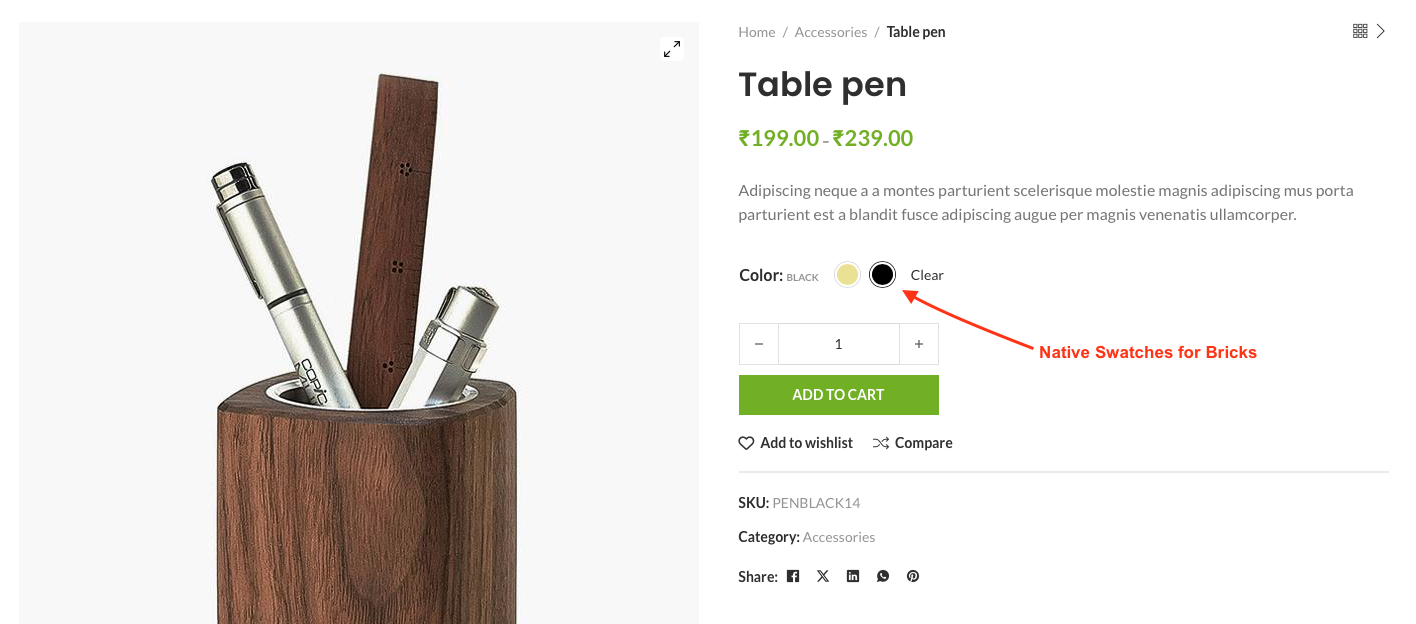
Now you can goodbye the extra plugin for swatches. BricksUltimate implemented the native swatches functionality for the Bricks builder and you can edit it directly from the Bricks editor. it is supporting the following elements:
- Add To Cart element of the bricks
- Add To Cart of BricksUltimate
Step-by-Step User Guide
Step 1:
Make sure that you installed and activated the BricksUltimate addon. Now navigate to Bricks -> BricksUltimate -> Misc tab and enable the "Swatches" feature.

Note: If you want to display the variable product image as swatch, you should enable the 2nd checkbox.
Step 2:
Add a new attribute or edit the existing attributes' terms
- Go to Products -> Attributes
- Add a new attribute
- Right side you will get all the attributes list
- Click on the "Configure terms" link of an attribute.
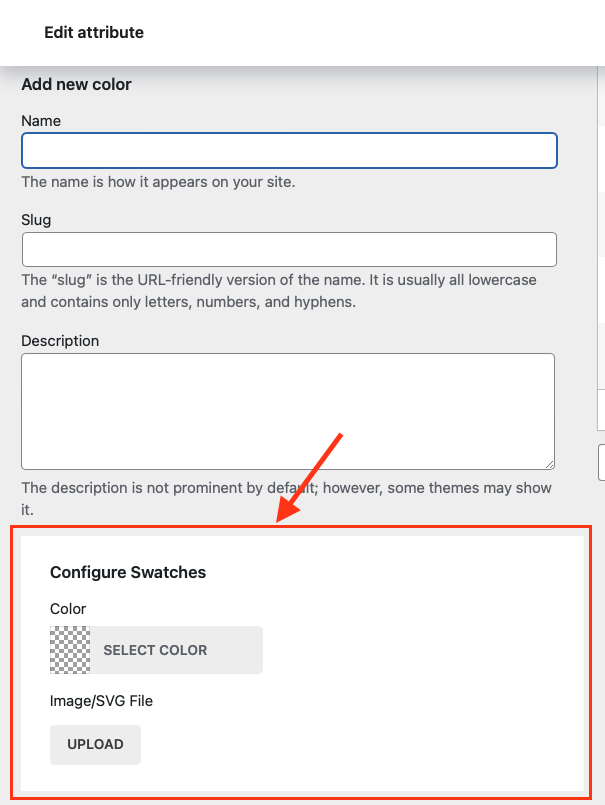
- You will get a new page. Enter the details like name, slug, description, etc.
- Add color or upload an image in Configure Swatches white box
Save the details. You would follow the same process for the other attributes.
Step 3:
Open the single product page template or quick view template on the builder editor and add the Add To Cart element. There is a new section "Swatches" inside the element. Configure the design as per your design and you are done.
Note: If you are using the native bricks Add To Cart element, you will go to Bricks ->BricksUltimate -> Misc page and enable the "Add To Cart Button" option.
