Miscellaneous Settings(MISC TAB)
The MISC (Miscellaneous) tab in BricksUltimate provides a collection of additional features that enhance functionality or tweak the behavior of your site. These settings can be easily toggled ON/OFF as needed, allowing you to customize your experience without complex configurations.
Here are some typical miscellaneous settings you might find:
1. Show Admin Bar In The Editor
By default, the WordPress Admin Bar is hidden in the Bricks editor for a distraction-free experience. Enabling this option brings back the Admin Bar, allowing you to:
- Quickly navigate to the Dashboard, Pages, Posts, or Settings without exiting the editor.
- Access user profiles, comments, or updates with a single click.
- Switch between frontend and backend seamlessly while designing.
2. BricksUltimate Quick Menu
This feature adds a custom quick-access menu to the Admin Bar (when enabled), providing instant shortcuts to key sections:
- Open to Bricks Templates, Post, Pages directly from the editor.
- Go to Customer Support, Facebook Group, or Bricks Tutorials in one click.
- Navigate faster without switching screens—perfect for power users.

BricksUltimate Menu
3. Disable White Label Tab
By default, BricksUltimate includes a White Label feature, allowing you to customize the plugin’s branding (e.g., changing the plugin name, slug, menu name or author details). However, if you don’t need this functionality, you can disable the White Label tab entirely.
4. Disable Term ID Column
BricksUltimate automatically adds a Term ID column to all taxonomy management screens (like Categories, Tags, or custom taxonomies). This allows you to:
- Quickly locate term IDs without inspecting the database or using additional tools.
- Easily reference IDs when setting up dynamic queries, custom code, or Bricks elements.
If you don’t frequently need term IDs, you can turn this option OFF.
 (Note: Disabling this only hides the column; it doesn’t affect functionality.)
5. Heading element
It adds some extra controls to the Bricks Heading element.
6. Single Post Comments Element
It adds some extra controls controls like hover effect, focus, width, height, padding, margin, etc. to the bricks Single Post Comments element when you will turn ON it. So it saves the time and you can easily customize the post comments' form design.
7. Image Mask
BricksUltimate enhances the built-in Bricks Image element by adding 64 unique SVG mask shapes, allowing you to:
- Transform standard images into eye-catching designs (circles, polygons, blobs, waves, etc.).
- Create visual depth without custom CSS or complex editing.
- Apply masks instantly—just select a shape from the dropdown in the image settings.
- Perfect for profile pictures, logos, or creative layouts.
- No design skills required—pre-made, scalable SVG masks ensure crisp quality on all devices.
8. Ultimate Query Builder
The BricksUltimate Query Builder supercharges the default Bricks query loop functionality, giving you greater control and flexibility when displaying dynamic content. It adds the following custom query providers:
- ACF Gallery
- ACF Post Object
- ACF Checkbox
- Adjacent Posts
- Author Box
- Compare Items
- Custom WP Query
- Custom Taxonomy Query
- Metabox Image Advanced - Clonable
- Metabox Checkbox List
- Metabox Relationship
- Posts Years
- Wishlist Items
- WP Menu
9. Ultimate Woo Query Builder
The BricksUltimate Woo Query Builder supercharges the default Bricks query loop functionality, giving you greater control and flexibility when displaying the WooCommerce products. It adds the following custom query providers:
- Products
- Best Selling Products
- Featured Products
- On-Sale Products
- Product Upsells
- Product Cross-sells
- Related Products (Single Product Page)
- Top Rated Products
- Recently Viewed Products
- Coupons
- Customer Orders
- Customer Ordered Items
- Bank Details
10. Add To Cart Button
BricksUltimate improves the default Bricks "Add to Cart" button with additional styling and customization options, making it easier to design a button that matches your store’s look.
Key Benefits:
✅ More Design Controls – Adjust colors, typography, spacing, hover effects, and more directly from the Bricks editor.
✅ Quick Customization – No need for extra CSS or complicated workarounds—style your button effortlessly.
✅ Better User Experience – Create visually appealing, high-converting buttons that encourage purchases.
11. Free Shipping Notice
BricksUltimate adds a dynamic free shipping bar that automatically shows customers how close they are to getting free shipping.
How It Works:
🛒 Display on Key Pages – Show the notice on the:
- Off-canvas cart (slide-out cart)
- Cart page
- Checkout page
⚙️ Easy Setup – Just enable the option in BricksUltimate, and new elements will appear in the Bricks editor.
🎨 Fully Customizable – Design the notice bar (colors, messages, progress indicators) using Bricks’ drag-and-drop editor.
Why It’s Useful:
📈 Boosts Average Order Value – Encourages customers to add more items to qualify for free shipping.
🛍️ Transparent & Engaging – Keeps shoppers informed about their progress toward free delivery.
12. Cart Content Element
You can overwrite the default WooCommerce empty cart message with the bricks. Here is the steps:
- Go to Bricks -> Templates
- Click on Add New Template button
- Enter the title
- Select "Section" from the Template type dropdown
- Click on "EDIT WITH BRICKS" yellow button
- Create a layout

13. Add To Cart Notification
BricksUltimate introduces an "Add to Cart Notification"—a small popup that appears in the bottom-right corner of the browser when a customer adds a product to their cart. Read the full details here.
14. Swatches
BricksUltimate adds the Swatches feature and makes it builder comaptible. You can avoid extra plugin.
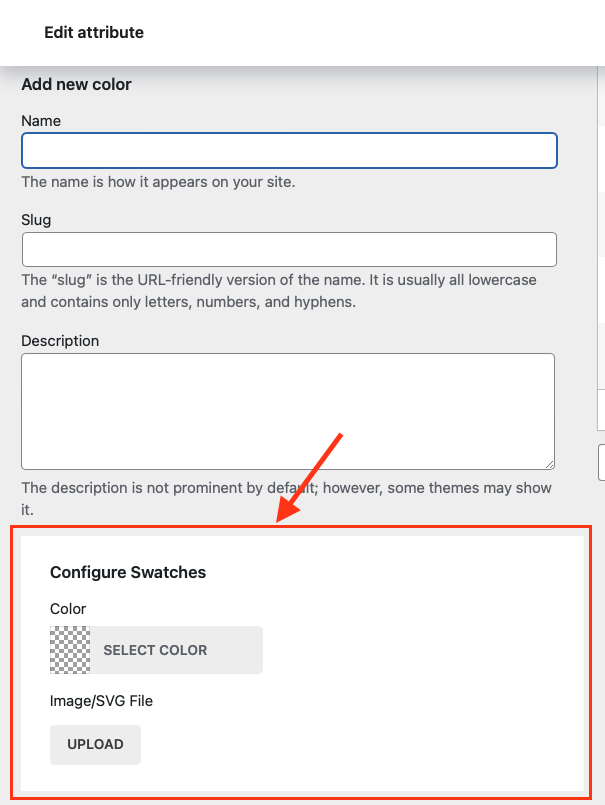
If you want to add the swatches on the variable product pages, you should enable it here. Therefore you will get the settings on the Product -> Attributes -> Term page. Here you add the Hex value or upload the custom image.
Afterthat, you open the single product template on the builder editor, add the "Add To Cart" element. Job is done.
If you want to display the product variation image as swatch, you would enable the "Fetch images from product variations" option.
Note: It is also compatible with the native swatches of the Bricks 2.0
15. Checkout Page
BricksUltimate adds some extra settings for the checkout page. Without any custom code you can do this:
- Remove default coupon form
- Remove login form
- Disable payment gateway(very important option for the Request A Quote form.)
- Hide shipping rates when free shipping is available
- Hide shipping rates when free shipping is available, but keep "Local pickup"
You can also personalise your checkout form fields. You can remove the unwanted Checkout form's fields(Billing/Shipping) for your shop site. You just turn ON the option and field(s) will be unregistered from the Checkout form.

Remove the selected field(s)
16. Order Bumps
BricksUltimate provides a seamless way to implement high-converting order bumps on your checkout page. It is fully compatible with bricks builder and giving a complete flexibility. By strategically placing irresistible offers at checkout, you can significantly increase revenue without extra ad spend. Read full details here.

17. Linked Variations
BricksUltimate introduces an innovative feature that brings greater versatility to simple product types. Now, you can link variations to a simple product and seamlessly switch between them directly on the product page—just like variable products, but with the simplicity of a single-product structure. Read the full details here.

18. Checkout Empty Cart Message
With BricksUltimate, you can now design a fully customized empty cart message that appears when customers clear their cart on the checkout page—enhancing user experience and reducing bounce rates.
How It Works
- Create a Custom Template
- In the Bricks Builder, design a Section-type template with your preferred layout, text, and styling.
- Add engaging content like:
- A friendly "Your cart is empty" message
- A call-to-action button (e.g., "Continue Shopping")
- Recommended products or promotions
- Assign the Template in BricksUltimate
- Navigate to the Bricks -> BricksUltimate -> Misc.
- Select your custom template from the Empty Cart Message dropdown.
- Save changes.
- Seamless User Experience
- When a customer clears their cart on the checkout page, they’ll see your custom-designed empty cart message instead of the default WooCommerce notice.
19. My Account Page
With BricksUltimate, you can easily create and customize WooCommerce My Account endpoints using the Bricks Builder—no PHP or custom code needed.
How It Works
- Enable Custom Endpoints
- Turn on the feature in BricksUltimate settings.
- A user-friendly dashboard interface will appear, allowing you to add, edit, and manage endpoints effortlessly.
- Create & Design Your Endpoints
- Add new tabs (e.g., "Rewards," "Wishlist," "Downloads") directly from the dashboard.
- Build content visually using the Bricks Editor—drag and drop elements, style text, add buttons, or even embed dynamic data.
- Publish & Go Live
- Once saved, your custom endpoints will automatically appear in the WooCommerce My Account section.
- Users can now navigate seamlessly between default and your custom-created tabs.
Key Benefits
✔ No Coding Required – Intuitive UI lets you build endpoints without touching PHP.✔ Fully Customizable – Design with Bricks’ powerful editor for a consistent brand experience.
✔ Enhanced User Experience – Add useful sections (order tracking, loyalty programs, support links) to improve customer engagement.
Transform your My Account page with custom endpoints—effortlessly! 🚀