Swatches for Home, Shop and Archives Pages

Swatches for Loop adds interactive product swatches (color, size, or other attribute selections) directly to products displayed in Bricks Query Loop grids. It is designed specifically for shop pages, product archives, or any custom query loop built with Bricks Builder. So It allows customers to quickly preview variations (e.g., colors, sizes) without entering the single product page.
Element Controls:
- Text only(no image & color): If you enable it, it will just display the swatches label.
- No image from the variations: Do not display the variation image.
- Sync with Add To Cart Button: Turn ON, if you want to sync the swatches with the add-to-cart button. It would only work for the variable product type. It allows customers to buy the product from the home, shop and archive pages.
- Button element: Select "Add To Cart" or "Add To Cart Icon" from the dropdown.
- Button Text: Enter "Add To Cart" or custom text.
- Price Element Selector: If you want to display the selected variation price, you add the price element's selector(ID or CSS class name).
- Disable selected variation image: Image of the selected variation will not show, if you turn ON it.
- Featured image selector: Displaying the image of the selected variation. Enter the image element's selector(e.g.,
.brxe-image > a > img). - Clear Text: Style the clear button.
- Tooltip: Displaying the swatches label on tooltip.
Step-by-step User Guide
Step 1: Go to Bricks -> BricksUltimate -> MISC tab and enable the Swatches option.
Step 2:
Add an attribute and terms:
- Go to Products -> Attributes
- Enter name
- Click on the Add Attribute button

Add terms of an attribute:
- Right side you will get all the attributes list.
- Click on the "Configure terms" link of an attribute.
- You will get a new page.
- Enter the details like name, slug, description, etc.
-
Go to Configure Swatches area and add color code or upload the image.
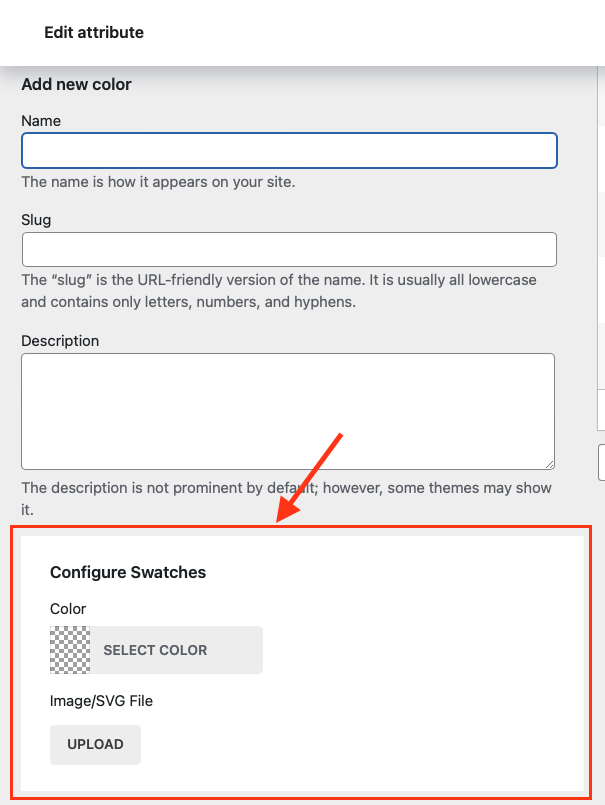
- Save the details.
You would follow the same process for the other attributes.

Step 3:
After completing the attributes section, you will go to the Products -> Add/Edit page. Click on the Attributes tab of the Product Data metabox. Select the attributes from the existing attributes list.
Now click on the Variations tab and enter the product details like image, price, stock quantity, sku, weight, etc. for the every variations. Repeat the same procedure for other variable products.
Read more details →
Step 4: Save the product.
Step 5: Now we shall create the product grid layout with the Bricks builder.
- Open the page or template on the Bricks editor.
- Add the BLOCK element
- Enable the Query Loop option
- Click on the Query () icon
- It will open the popup
- Setup the query parameters for the product loop
- Create the card layout
- Add the Swatches for Loop element inside the query loop BLOCK element
- If you do not want to sync the swatches with the Add To Cart button, you will select an attribute from the Attributes dropdown

Q1. Can I show attributes of the simple products by Swatches for Loop element?
Yes. This element also supports the simple product’s attributes. You select the “Enable for simple product” option in the Swatches for Loop element and it will display the swatches for the simple product type.
Q2. How do I connect the Add To Cart button with Swatches?
Go to Bricks->BricksUltimate->Woo Element and activate the (BU) Add To Cart element. Make sure that you created the product listing(home, shop, archive page) with the Bricks native loop builder.
- Add the Swatches for Loop element inside the loop wrapper
- Turn ON the "Enable" option under Sync with Add To Cart Button section
- Select the “ Add To Cart” or “Add To Cart Icon” option from the Button element dropdown
- Enter the button text if you are using the Add To Cart element
- Add the Add To Cart or Add To Cart Icon element inside the loop wrapper
- Adjust the other settings and save it
So It allows customers to quickly add the variable product to the cart without entering the single product page.
Q3. How do I display the price of the selected variations?
Copy the element ID(e.g.,#brxe-sc2hwn) of the Product Price element and put it into the Price Element Selector input box of the Swatches for Loop element.
Q4. How do I change the featured image with the selected variations image?
Copy the element ID(e.g.,.brxe-image > a > img) of the Image or Product Image element and put it into the Featured Image Selector input box of the Swatches for Loop element.