Buying one product is straightforward. Ordering several products, choosing different variations, and entering quantities across a large catalog can take considerably more effort.
For wholesale customers, trade buyers, and returning shoppers, the familiar product-grid experience is not always the most efficient way to build a cart.
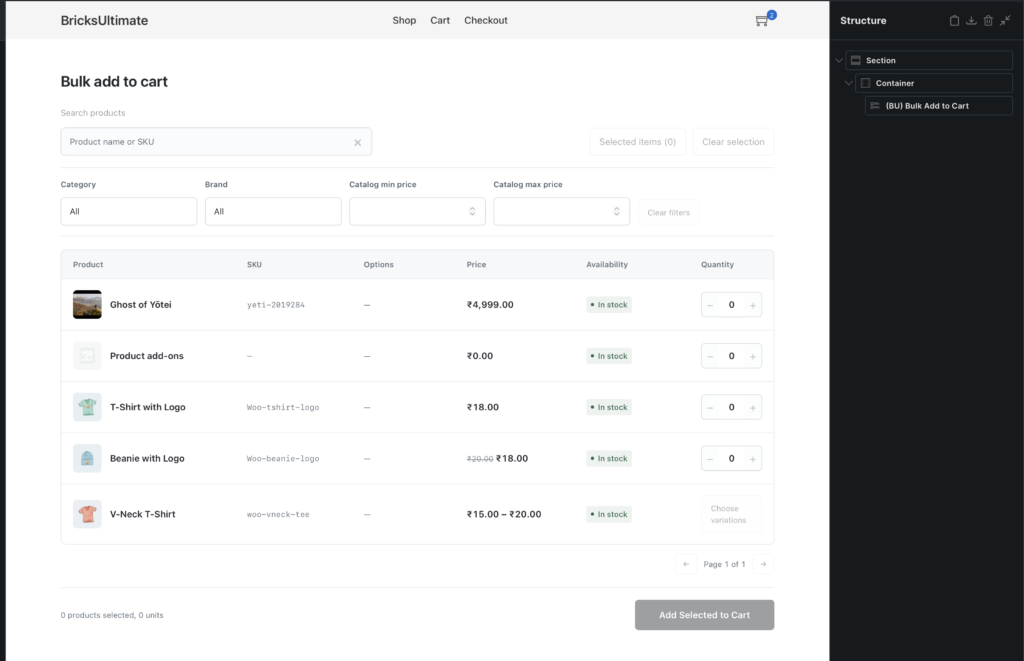
BricksUltimate’s Bulk Add to Cart brings that workflow into one searchable, customizable interface. Customers can find products, select variations, enter quantities, and add their selections together, without opening every product page.
One Ordering Interface
Bulk Add to Cart is a Bricks element that displays WooCommerce products in a table or compact list.
Customers can search your catalog, enter quantities beside eligible products, and continue browsing. Their selections remain available as they move between result pages or change filters.
The Selected items button brings those choices together for review. Customers can adjust quantities, remove selections by setting them to zero, and submit everything using Add Selected to Cart.
Each request supports up to 50 distinct product or variation rows. Separate instances of the element maintain independent selections.
Search And Filter
A quick-order interface needs more than a product list. Customers should be able to narrow a large catalog to the products they actually need.
Bulk Add to Cart supports product-name and SKU search, including variation SKUs. You can also enable advanced filters for:
- Product categories.
- Brands using a configured product taxonomy.
- Global WooCommerce attributes, such as color and size.
- Catalog price ranges.
- Stock availability.
- Previously purchased products.
The purchase-history filter is particularly useful for repeat buyers. Signed-in customers can browse products from their own paid orders and choose new quantities.
This is not an exact reorder of an old transaction. Current availability and pricing apply; previous coupons, shipping selections, and product configurations are not restored.
Choose Variations Directly
Variable products appear as expandable groups, allowing customers to order individual variations from the listing.
For example, a clothing buyer can select quantities for different sizes of the same shirt without visiting a separate page for each combination.
You can keep variations click-to-load or enable Auto-load variations to expand them automatically. Automatic loading uses bounded background requests, while variation pagination keeps large product ranges manageable.
Combined filters also respect variation combinations. A red variation at one price and a blue variation at another should not incorrectly satisfy a filter that neither variation matches individually.
Show Useful Details
Different businesses need different information before a customer can confidently place an order.
The builder-configurable Custom Columns feature lets you display product attributes, pack sizes, delivery information, and explicitly approved custom fields.
A trade catalog might show SKU, pack size, availability, and dispatch information. A clothing catalog might prioritize color, size, and price.
Columns can inherit a parent product’s value when a variation has no value of its own. Protected custom fields are blocked by default, and values are displayed as plain text.
Pack-size and delivery columns are informational. They do not automatically enforce quantity multiples or calculate shipping services.
Instant Order Estimates
Enable Live order estimate to show selected-row subtotals and an estimated product total across all selected pages.
The default client-side mode uses numeric unit prices supplied by the server. Quantity changes update the displayed estimate immediately, without making a pricing request for every adjustment.
Formatting follows WooCommerce’s currency settings, including symbols, separators, decimal precision, and currency position. Decimal-safe arithmetic helps avoid common floating-point display errors.
An advanced server-side mode remains available for pricing integrations that need the complete selection or quantity-dependent calculations.
These are estimates, not checkout totals. Shipping, taxes, fees, coupons, add-on charges, and cart-only pricing adjustments are excluded. WooCommerce determines the actual cart and checkout totals.
Designed For Bricks
The element provides independent desktop and mobile presentation settings, including table and compact-list layouts.
Customize typography, spacing, product images, availability badges, quantity buttons, action controls, and state messages directly in Bricks.
The builder displays five real products as read-only preview rows, making it easier to style the interface without waiting for frontend AJAX requests.
Dynamic tags and interaction events also let you connect selection counts, quantities, and form activity to other builder elements.
Clear Submission Results
Bulk ordering should not leave customers guessing.
After submission, a summary and per-product report appear above the table. Accepted rows clear their selections, while rejected rows retain their quantities for correction.
WooCommerce still validates availability, quantities, variation data, and applicable add-to-cart restrictions. Required third-party add-on fields are not automatically reproduced inside the interface; products needing complex configuration may require a dedicated integration or their product page.
Get Started
Enable Bulk Add to Cart under Bricks → BricksUltimate → Woo Elements, then add (BU) Bulk Add to Cart to your page or template.
Choose the product range, configure the columns, enable useful filters, and select layouts for desktop and mobile.
The result is a more focused ordering experience: less navigation for customers, clearer product information, and a practical way to build a multi-product WooCommerce cart.


