Building a polished WordPress site is rarely difficult because of one big task. More often, time disappears through hundreds of small actions: reopening a panel, searching for the same element, resizing a crowded workspace, navigating back to a parent container, or rebuilding conditions that already exist elsewhere.
Breakdance Editor Plus is designed to remove that friction.
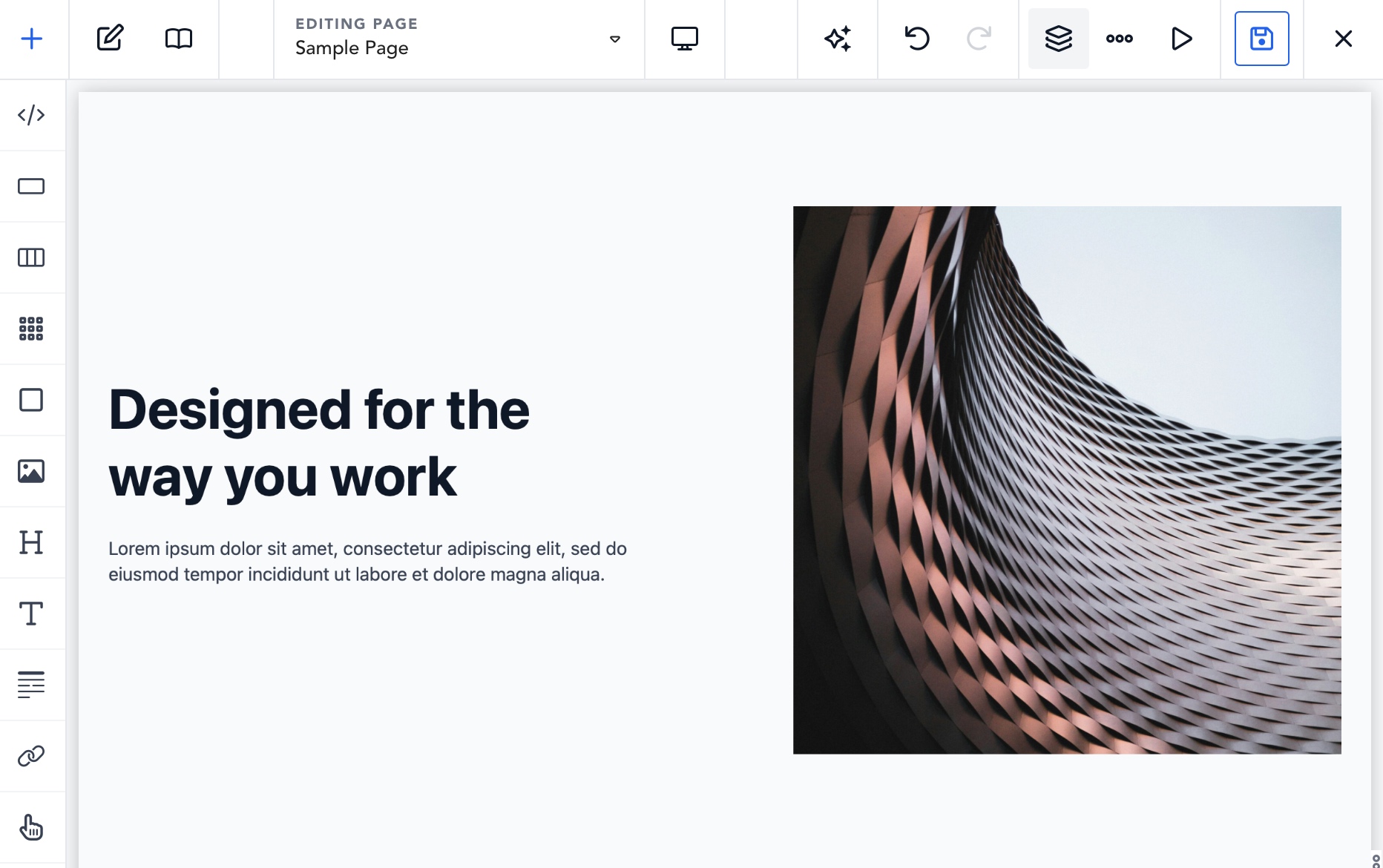
It adds a focused collection of workflow enhancements to the Breakdance visual builder without trying to replace the builder itself. Frequently used elements can stay one click away. Grid layouts can be designed visually. Structure and Properties become easier to navigate. Conditions can be copied between elements. Even familiar toolbar actions can be simplified to reclaim space and reduce repetitive clicks.
The result is still Breakdance—just faster, clearer, and more adaptable to the way you work.
What Is Breakdance Editor Plus?
Breakdance Editor Plus is a WordPress plugin that extends the Breakdance editor with productivity, navigation, and layout features.
Its enhancements are built around a native-first approach. Rather than creating a separate page-building system, the plugin works with Breakdance’s existing element buttons, property actions, selection behavior, history, responsive breakpoints, and save flow. This helps new tools feel like part of the editor instead of a disconnected layer placed on top of it.
The plugin’s features fall into four broad areas:
- Faster access to elements and library content
- Better control over the editor workspace
- Clearer element navigation and condition management
- Advanced visual grid editing
Each feature can be enabled or disabled independently from Editor Plus → Settings, so you can keep the editor minimal or build a workflow tailored to your needs.
Feature Overview
| Feature | What it improves |
|---|---|
| Shortcut Panel | Keeps favorite elements available in a persistent vertical toolbar |
| Add Panel Grid Layout | Displays elements in one, two, or three columns |
| Add Panel Pinning | Pins and unpins elements directly from the Add panel |
| Library Toolbar Button | Opens the native Design Library without reopening Add panel tabs |
| Visual Grid Builder | Creates and edits CSS Grid layouts through an interactive visual interface |
| Resizable Structure Panel | Gives the Structure panel more or less space as needed |
| Always Show Structure | Keeps the document hierarchy available throughout the editing session |
| Structure HTML Tags | Shows the actual rendered HTML tag for each available structure item |
| Properties Breadcrumbs | Displays the selected element’s hierarchy and enables quick ancestor selection |
| Conditions Clipboard | Copies and pastes complete conditional-display configurations |
| Toolbar Enhancements | Replaces text actions with compact icons and optionally separates Exit destinations |
| Settings Import and Export | Transfers supported plugin settings between WordPress installations |
Keep Frequently Used Elements in the Shortcut Panel
The Shortcut Panel is one of the most immediate workflow improvements in Breakdance Editor Plus. It adds a narrow vertical rail of element icons beside the canvas, giving you direct access to the elements you use most.
On first use, the panel is populated with Breakdance’s Basic elements. You can then turn it into a personal toolset by pinning other elements and removing anything you do not need.
Pin and unpin elements from the Add panel
Open the regular Add panel and hover over—or keyboard-focus—an element. A pin action appears on the element, allowing it to be added to or removed from the Shortcut Panel without interrupting the normal element workflow.
This works with more than the initial Basic collection. You can build a shortcut set around the elements relevant to your typical projects, including commonly used custom elements.
Drag shortcuts into your preferred order
Pinned elements can be reordered vertically by dragging them within the Shortcut Panel. Clear insertion indicators show where the item will be placed. Dropping an item into the panel’s empty area moves it to the end of the list.
The new order is saved in the browser, so the panel continues to match your workflow when the builder is reopened.
Smooth tooltips make icon recognition easy
A compact icon rail saves space, but icons alone are not always self-explanatory. Each shortcut therefore has a smooth floating tooltip that displays the full element name on hover or keyboard focus.
The tooltip opens toward the canvas, automatically accounting for whether the Add panel is configured on the left or right. It is kept outside the scrolling container so it is not clipped, and it closes appropriately when the panel scrolls, the window changes size, or Preview mode is opened. Reduced-motion preferences are also respected.
Scroll naturally without displaying a scrollbar
Long shortcut lists remain vertically scrollable, but the scrollbar itself is hidden. This keeps the panel visually clean while retaining mouse-wheel, trackpad, touch, and supported keyboard scrolling.
Works on either side of the builder
The Shortcut Panel follows the configured Add panel position. If the Add panel is on the left, shortcuts appear vertically on the left; if it is on the right, the panel moves with it. In both cases, it stays on the canvas-facing edge so the icons remain close to the page you are building.
The panel is available from builder page load and is automatically hidden in Breakdance Preview mode, where editing controls should stay out of the way.
Shortcut clicks remain native Breakdance actions
Clicking a shortcut forwards the action to the matching native Breakdance element control. That means availability rules, insertion behavior, nesting rules, and native element handling remain intact. The panel shortens the path to an element without creating a second, competing insertion system.
Make the Add Panel Work the Way You Think
The standard Add panel remains essential, especially when browsing a large element library. Breakdance Editor Plus gives it several practical improvements.
Choose a one-, two-, or three-column layout
When Add Panel Grid Layout is enabled, layout buttons appear near the panel’s Close control. You can display elements in one, two, or three columns, depending on your panel width and how much information you want to see at once.
A single column is comfortable for reading longer names. Two or three columns make much better use of a wide panel and reduce scrolling. The selection is stored locally in the browser and remains available across editing sessions.
The element cards retain their normal Breakdance click and drag behavior in every layout.
Hide the Elements and Library tab row
If you use the Add panel primarily to find and insert elements, the Elements/Library selector can take up valuable vertical space. The Hide Elements/Library buttons in the Add panel option removes that row while keeping element search and browsing available.
Hiding the row does not mean losing the Design Library. A dedicated Library button can be added to the main builder toolbar.
Open the native Design Library from the toolbar
The Library toolbar button sits after Properties and forwards directly to Breakdance’s native Design Library action. This makes the library easy to reach even when the Add panel tab row has been hidden. Because the existing Breakdance action is used, there is no duplicate modal or separate library state to manage.
Design CSS Grid Layouts Visually
CSS Grid is powerful, but complex layouts can become slow to build when every track and placement value must be entered manually. The optional Visual Grid Builder turns that work into a direct, interactive process.
Select a native Breakdance Grid element and launch the grid editor from the element controls. A centered visual workspace shows the grid, its tracks, and its children. The launcher only appears when a compatible single Grid element is selected, helping the interface stay contextual and uncluttered.
Define columns, rows, and gaps
The grid editor supports familiar layout controls as well as advanced track definitions. You can edit:
- Column and row counts
- Column and row track values
- Gaps between tracks
- Repeat and
minmax()expressions - Full custom track expressions
- Grid auto-flow behavior
Simple layouts can be built quickly, while advanced users retain access to precise CSS Grid expressions.
Move and resize children directly on the grid
Grid children can be dragged into new cells. Their edges and corners can be dragged to change row or column spans. You can also control placement numerically with column start, column span, row start, row end, and z-index values.
During a move, collision handling pushes siblings into valid positions while preserving their spans and source order. The behavior respects row- or column-based flow, can extend the generated grid as needed, and keeps explicitly defined tracks intact.
The editor supports layouts up to 24 by 24 tracks, providing room for sophisticated page sections without turning the interface into an unbounded canvas.
Create spanning items and clear manual placement
Shift-assisted interactions make it possible to create or adjust spans quickly. Keyboard users can perform the corresponding action with Shift+Enter. Manual placement can also be cleared when you want a child to return to automatic grid placement.
Fill empty grid cells with Div elements
When Fill empty cells is enabled, applying the layout can add native Breakdance Div elements to unused cells. Existing children are preserved, occupied spans are respected, and running the action again does not keep duplicating fillers.
This is useful for building structured card matrices, comparison layouts, editorial mosaics, and other designs where every cell needs a selectable container.
Work across every responsive breakpoint
The Visual Grid Builder supports Breakdance’s built-in and custom breakpoints. Columns, rows, gaps, child placement, and z-index can have separate drafts at each breakpoint. Visual indicators identify breakpoints containing edits, while responsive inheritance continues to behave as expected.
Switching breakpoints keeps the native canvas and visual editor synchronized, making it easier to understand how a layout evolves from desktop to tablet and mobile.
Synchronize with native Breakdance grid controls
The visual editor works bidirectionally with relevant native controls, including Items Per Row and Space Between Items, as well as advanced grid layout values. Exact complex track expressions remain available in the advanced representation, while resolvable auto-fit and auto-fill layouts can be visualized when possible.
Apply changes safely
Opening the Visual Grid Builder does not immediately write changes to the document. You can experiment with a draft, then choose:
- Apply Grid and Continue to update the document and keep the editor open
- Apply Grid and Save to apply the layout and continue through the builder’s save flow
Closing the popup or pressing Escape discards unapplied draft changes. Applied edits use Breakdance’s native property and history actions, which keeps them compatible with Undo and the normal document-dirty state.
Take Control of the Structure Panel
Large pages are much easier to manage when their hierarchy is visible. Breakdance Editor Plus makes the Structure panel more flexible and informative.
Resize the panel
Drag the panel’s inner edge to change its width. The resize handle follows the panel if Breakdance moves it from one side of the screen to the other, and sensible limits prevent it from consuming the entire preview area.
The control is keyboard-accessible:
- Left and Right Arrow adjust the width
- Shift plus an arrow makes a larger adjustment
- Home and End move to the minimum or maximum supported width
- Escape cancels an active pointer drag
The chosen width is stored in the browser. Breakdance’s own preview-resizing behavior continues to handle the canvas as space changes.
Keep Structure open
Enable Always show the Structure panel when the document tree is central to your workflow. Editor Plus opens Structure using the native toolbar action, prevents accidental closure, and restores it after another same-side panel has temporarily replaced it.
This is especially useful when working on deeply nested sections or when repeatedly moving between sibling elements.
Display actual HTML tags
Element names describe their purpose, but they do not always reveal the markup being rendered. The HTML Tags option adds the actual rendered tag—such as <section>, <div>, or <h2>—between an item’s icon and name in the Structure panel.
The tag is read from the rendered preview node and updated as the page changes. Editor Plus does not guess tags for elements that have not rendered, which keeps the information grounded in the current document output.
For accessibility-minded builds and semantic reviews, this small addition can save a surprising amount of inspection time.
Navigate Faster with Properties Breadcrumbs
When a deeply nested element is selected, it is easy to lose context—especially if the Structure panel is closed or space is limited.
Properties Breadcrumbs display the selected element’s hierarchy directly below its name in the Properties panel. A path might look like:
Section › Content Wrapper › Post Loop Builder
Each ancestor is keyboard-accessible and clickable. Selecting one uses Breakdance’s native selection behavior, so moving up to a parent container takes a single action.
Breadcrumbs stay synchronized with custom element names, reparenting, and document changes. They disappear when there is no suitable single selection, such as during bulk-selection states.
Copy and Paste Complete Element Conditions
Conditional visibility often contains more than one simple rule. A real configuration may include AND/OR groups, dynamic data metadata, and references to other objects. Rebuilding those conditions manually is slow and creates opportunities for mistakes.
The Conditions Clipboard adds Copy and Paste actions beside Only Show Element If in the Settings → Conditions area.
Copying preserves the full supported condition structure, including:
- AND/OR condition groups
- Dynamic-data metadata
- Referenced IDs
- The original grouping and values
Conditions can be pasted into another compatible element, including an element in another same-origin builder tab. Clipboard data is scoped to the current site and logged-in user and can survive a page reload through browser storage.
Pasting is performed through the native property action, which means it marks the document as changed and remains compatible with Undo. Other element settings—including the In-Builder Preview setting—are preserved.
The controls disable themselves when an action would not be valid, such as when there are no conditions to copy, multiple elements are selected, or the current editing state is restricted. The plugin also validates stored clipboard data and handles unavailable browser storage gracefully.
Simplify the Main Builder Toolbar
Not every productivity feature needs to be large. Several Editor Plus options make high-frequency toolbar actions more compact and easier to scan.
Replace Save text with an icon
The Save label can be replaced with a familiar save icon, freeing horizontal space without changing the underlying action. The control preserves its accessible label, translated text, click handler, and loading state.
A native-state-driven indicator also helps communicate when the document contains unsaved changes.
Replace Add text with a plus icon
The Add label can be displayed as a plus icon while retaining its native active state, tooltip, and behavior. This pairs naturally with the Shortcut Panel: the most common elements stay in the vertical rail, while the plus button opens the full Add panel when needed.
Separate the Exit destinations
Instead of opening an Exit menu and then choosing a destination, Editor Plus can display separate controls for the WordPress admin area and the site frontend beside Update. This turns two common navigation paths into direct actions.
Show the WordPress admin bar
If you rely on WordPress admin shortcuts while building, the admin bar can be restored in the outer Breakdance editor. Editor Plus adjusts the editor toolbar and canvas so the bar does not cover the interface. The preview iframe remains unaffected.
Move Settings Between Sites
Breakdance Editor Plus includes a dedicated Editor Plus → Import / Export screen for transferring plugin configuration.
Export creates a JSON representation of supported site-level settings. Import accepts validated JSON, ignores unknown keys, and updates only recognized Boolean settings. Partial imports are supported, so omitted options retain their current values.
The import process is protected by WordPress permissions and nonces, and uploads are limited to 64 KB.
It is important to distinguish these WordPress-stored plugin settings from browser-local preferences. Personal interface choices—such as Add panel column count, Structure panel width, Shortcut Panel pins, and shortcut order—remain in the current browser and are not included in site settings exports. This prevents one person’s workspace arrangement from being imposed on every editor using a site.
Built for Accessibility and Keyboard Use
Editor enhancements should not make controls harder to understand or operate. Breakdance Editor Plus retains accessible names for compact icon buttons and adds keyboard interactions where direct manipulation would otherwise depend on a mouse.
Examples include:
- Keyboard focus tooltips for Shortcut Panel icons
- Reduced-motion support for shortcut tooltip animation
- Keyboard panel resizing
- Keyboard-accessible Properties breadcrumbs
- Shift+Enter support for applicable Visual Grid Builder interactions
- Preserved native labels and translated text for toolbar actions
The plugin also uses its own translation text domain for user-facing WordPress strings.
A Native-First Approach to Compatibility
The most important design decision in Breakdance Editor Plus is what it does not replace.
Element shortcuts activate native element buttons. The Design Library control opens the native library. Structure behavior uses the existing toolbar action. Conditions and grid properties are applied through the builder’s property system. Document changes participate in the expected dirty state, save flow, and Undo history.
That approach has two practical advantages. First, the workflow remains familiar to existing Breakdance users. Second, Editor Plus can focus on improving access and interaction instead of maintaining a parallel version of Breakdance’s internal behavior.
Plugin assets are scoped to the outer editor environment. They are not intended to load on the public site, in the WordPress admin generally, or inside the builder’s preview iframe. The result is an editor enhancement plugin rather than a frontend dependency.
Example Workflows
Build a landing page with fewer panel changes
Pin Section, Div, Heading, Text, Image, Button, and Icon to the Shortcut Panel. Arrange them in the order you normally build a section. Insert common elements directly from the rail, and open the full Add panel only for less common components.
Keep Structure visible while building, widen it when the hierarchy becomes deep, and use Properties Breadcrumbs to jump back to a wrapper without hunting through the tree.
Create a responsive card layout
Select a Breakdance Grid and open the Visual Grid Builder. Define desktop tracks and spacing, place or span the cards visually, then switch to tablet and mobile breakpoints to create responsive arrangements.
Apply the grid when the draft is ready, and use normal Breakdance Save and Undo behavior throughout the process.
Reuse visibility logic safely
Configure a detailed set of conditions on one element, copy the complete condition structure, and paste it onto another compatible element. Adjust only the values that differ instead of recreating the entire AND/OR hierarchy.
Review document semantics
Enable HTML tags in Structure, keep the panel open, and walk through the page hierarchy. Headings, sections, and generic containers become easier to distinguish without repeatedly opening browser developer tools.
Getting Started
- Install and activate Breakdance Editor Plus on a WordPress site with Breakdance active.
- Open Editor Plus → Settings in the WordPress admin.
- Enable the enhancements that fit your workflow.
- Save the settings and reload the Breakdance builder when prompted or when an editor-facing change is not yet visible.
- Personalize the Add panel layout, Structure width, and Shortcut Panel directly inside the builder.
Breakdance Editor Plus requires WordPress 6.7 or newer, PHP 7.4 or newer, and an active Breakdance installation.
Who Is Breakdance Editor Plus For?
The plugin is especially useful for:
- Freelancers who build multiple client sites and repeat the same editor actions every day
- Agencies that want a more consistent Breakdance production workflow
- Designers who prefer direct visual layout controls
- Developers who care about document structure and semantic HTML
- Power users who want faster navigation without replacing Breakdance’s native systems
- Site owners who want a cleaner, more approachable editing workspace
You do not need to enable every feature. A user may only want compact toolbar icons and breadcrumbs, while another may rely on the Shortcut Panel, persistent Structure tree, and Visual Grid Builder together.
Frequently Asked Questions
Does Breakdance Editor Plus replace Breakdance?
No. Breakdance remains the page builder. Editor Plus adds workflow and interface enhancements around its existing editor controls.
Will these features affect the public frontend?
The editor enhancements are scoped to the outer Breakdance builder rather than the public site or preview iframe. Their purpose is to improve the editing experience, not add frontend UI.
Can I choose which features are enabled?
Yes. Features are controlled individually from Editor Plus → Settings.
Can I pin custom elements to the Shortcut Panel?
The pin action is designed to work from the Add panel, allowing available elements beyond the initial Basic set to be added to the shortcut collection.
Does the Shortcut Panel work when the Add panel is on the right?
Yes. It follows the configured Add panel side and remains on the edge facing the canvas.
Can shortcuts be reordered?
Yes. Drag pinned shortcuts vertically into the order you prefer. The order is stored in the browser.
Why is there no scrollbar on a long Shortcut Panel?
The rail remains scrollable, but the visual scrollbar is intentionally hidden to keep the narrow panel clean.
Are editor preferences shared with other users?
Site-level feature toggles are stored in WordPress. Personal layout preferences such as panel width, Add panel columns, pinned shortcuts, and shortcut order are browser-local.
Can settings be transferred to another site?
Yes. Supported site-level settings can be exported and imported as JSON from Editor Plus → Import / Export. Browser-local workspace preferences are not part of that file.
Does the Visual Grid Builder support responsive layouts?
Yes. It supports built-in and custom Breakdance breakpoints, with breakpoint-specific drafts for grid tracks, gaps, placements, and z-index values.
Do pasted conditions replace other element settings?
No. The Conditions Clipboard targets the supported conditions value and preserves unrelated element settings.
Spend More Time Designing, Less Time Managing the Editor
Breakdance already provides a capable visual-building environment. Breakdance Editor Plus concentrates on the moments around that core experience: reaching an element, understanding context, managing space, reusing configuration, and turning complex grid values into something you can see and manipulate.
The Shortcut Panel keeps favorite elements ready without crowding the canvas. Add panel layouts make libraries easier to scan. Structure resizing, HTML tags, and Properties Breadcrumbs improve orientation. The Conditions Clipboard eliminates repetitive rule building. The Visual Grid Builder makes sophisticated responsive layouts more direct.
Individually, these enhancements remove small interruptions. Together, they create a noticeably faster and more comfortable Breakdance workflow—one that adapts to the person building the site while preserving the native editor underneath.
Ready to streamline your Breakdance workflow? Install Breakdance Editor Plus, enable the tools that match the way you build, and turn the editor into a workspace that feels like your own.
Buy the Breakdance Editor Plus
Single Site License
10 Sites License
Unlimited Sites License


