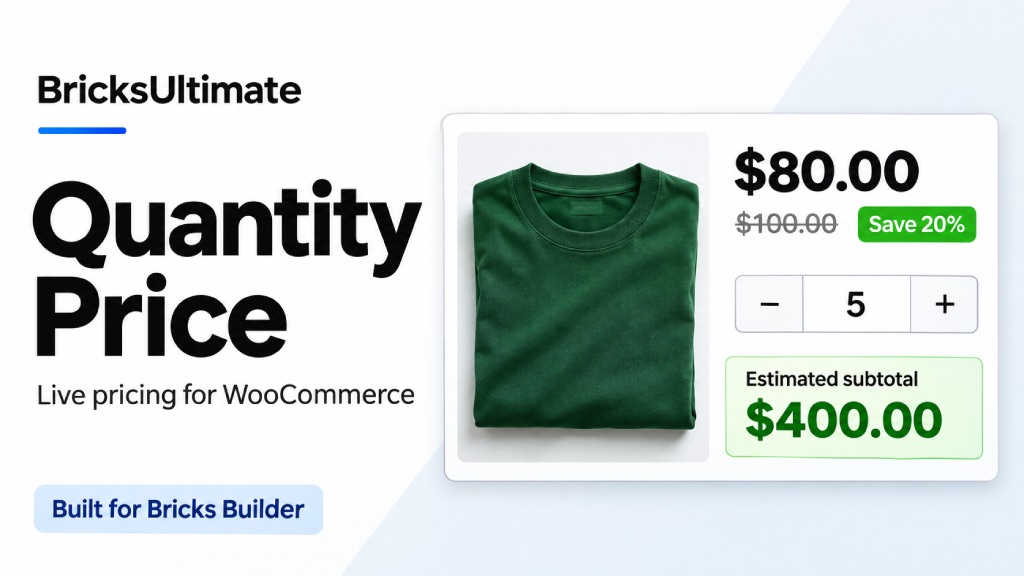
A quantity discount is useful only when shoppers understand it. If a product promises a better price for buying more, but the product page continues to display the original amount, customers have to reach the cart to discover what they will pay.
The BricksUltimate Quantity Price element closes that gap. It displays a live quantity-based unit price, selected-product subtotal, savings amount, or savings percentage directly in your Bricks layout. Customers can see the effect of their quantity selection before adding the product to the cart.
Pair it with Quantity Pricing Table and Quantity Pricing Progress to explain the offer, show the current price, and identify the next quantity break.
What Is the Quantity Price Element?
Quantity Price is a front-end display element connected to BricksUltimate’s Quantity Pricing engine. The engine decides which pricing rule applies; the element presents the result in a design you control through Bricks.
You can use it as the main price display near a product form, as a supplementary savings message, or as an estimated subtotal for the selected product quantity. Its optional synchronization setting can also update another matching product-price element inside the same product wrapper.
Adding the element does not create a discount. Configure an eligible global, product, or variation rule first. Pricing rules can apply to the cart even when no pricing display element is present.
See the Price Change Before Adding to Cart
Consider a product with a base price of $100 and a volume rule that gives 20% off when the qualifying quantity reaches five units.
| Selected quantity | Unit price | Selected subtotal | Total savings |
|---|---|---|---|
| 1 | $100 | $100 | $0 |
| 5 | $80 | $400 | $100 |
As the shopper changes the quantity, Quantity Price can update the unit amount, original strike-through price, savings, discount badge, and selected subtotal. A separate Progress element can explain how many additional units are needed to reach the next break.
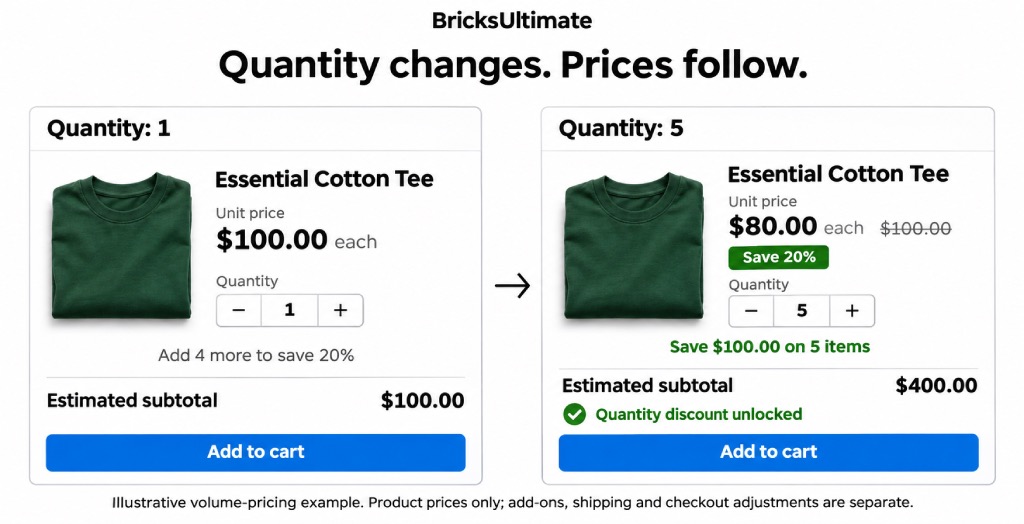
The example assumes no existing qualifying cart quantity and omits tax and other adjustments for clarity. The displayed subtotal covers the selected product units, not the entire cart or final checkout amount.
Four Ways to Display the Main Value
Choose the main value that best fits your layout:
- Unit price: the effective price per product unit for the current quantity context.
- Selected-quantity subtotal: the estimated product amount for the selected units.
- Savings amount: the reduction per item or across the selected quantity.
- Savings percentage: the effective percentage reduction from the product base.
Optional details include an original price, savings message, selected quantity, subtotal, discount badge, and pricing note. You can hide the element when no eligible rule applies or keep it hidden until an actual discount is unlocked.
Volume Pricing and Graduated Pricing Explained
Volume Pricing: One Reached Rate for Every Eligible Unit
With volume pricing, reaching a quantity break applies that break’s rate to all eligible units. At five units with 20% off a $100 base, the unit price is $80 and the product subtotal is $400.
Graduated Pricing: Different Rates for Different Bands
Graduated pricing calculates each quantity band separately. Suppose the first two units cost $100 each and units three onward cost $80 each. Selecting five produces $200 for the first two units plus $240 for the next three: a total of $440.
Quantity Price shows the effective blended unit rate of $88, not $80 for every item. Effective savings are $60 across five units, or 12%. Pair the price with a graduated pricing table so shoppers can understand the bands behind the result.
Displayed blended unit rates may be rounded. WooCommerce’s calculated line amount remains the reference; multiplying a rounded visible unit rate is not always an exact reconstruction of the line total.
How to Set Up Quantity Price in Bricks
1. Enable Quantity Pricing
Open Bricks > BricksUltimate > MISC, enable Quantity Pricing, and save. Reload the builder to see the dedicated Quantity Pricing category.
The category contains (BU) Quantity Price, (BU) Quantity Pricing Table, and (BU) Quantity Pricing Progress. These elements do not require a second activation under Woo Elements.
2. Create an Eligible Pricing Rule
Go to WooCommerce > Quantity Pricing and create an active, published rule. Choose the intended products or variations, pricing model, quantity grouping, and breaks. Review role eligibility, sale-product policy, scheduling, and coupon behavior.
You can also use product-level settings and variation overrides. If a global rule appears not to apply, check whether the product or variation is disabled or follows its own override.
3. Add the Element Near the Product Form
Open your single-product template in Bricks and place Quantity Price beside the purchase controls. Leave Product / variation ID empty to use the current product context, or supply the intended fixed or dynamic ID.
Use Cart + product quantity input for a purchase preview. For a product-specific information display in cart or checkout, use Cart quantity only. An optional custom quantity selector connects a specific input when automatic matching is not appropriate.
4. Configure the Content and Design
Choose the main value, turn supplementary details on or off, and customize the labels. All Quantity Price element-specific style controls are under the Content tab. Save, then test the actual storefront with an eligible product and customer.
Keep an Existing Product Price in Sync
You do not have to remove a price element that is already part of your design. Enable Synchronize another price and set a price-only target selector. The default selector, .brxe-product-price, targets Bricks Product Price.
For precise control, add a class such as my-live-price to the intended price element and use .my-live-price as the target. Keep it inside the same product wrapper as Quantity Price and the matching form. An optional Product wrapper selector, such as .my-product, defines that enclosing scope explicitly.
Synchronization always supplies the quantity-priced unit price, even if Quantity Price itself displays a subtotal or savings amount. You can choose whether to include the original strike-through amount.
This is scoped display synchronization, not a global catalog-price replacement. Do not target a cart total, checkout total, add-on grand total, purchase form, or wrapper containing controls. Avoid multiple widgets or scripts competing for the same price target.
Simple Products, Variations, and Mixed-Product Groups
For simple products, the element follows the matching product and quantity input. For variable products, it follows the variation selected in the associated WooCommerce variation form. Before a selection, a configurable message can prompt the shopper to choose an option.
Mixed-product grouping lets eligible products assigned to the same winning rule share a qualifying quantity. For example, three eligible units already in the cart plus two newly selected units can reach a five-unit volume tier.
If the selected product’s base is $100 and that tier gives 20% off, its two selected units can show an estimated subtotal of $160. The qualifying quantity is five, but the selected quantity is two. Other products help qualify the offer; their amounts are not silently included in this product’s subtotal.
Style the Experience in Bricks
Choose Stacked, Inline, or Price and savings split presentation. Adjust alignment, original-price order, badge position, wrapping, content width, and the gaps between sections, prices, and details.
Dedicated style groups cover the wrapper, heading, label, current and original prices, prefix, suffix, currency symbol, badge, savings, subtotal and subtotal value, quantity, note, response, and retry button. Typography, colors, backgrounds, spacing, borders, and shadows help the element fit a compact product card or a larger product-page layout.
For a clear visual hierarchy, emphasize the current amount, keep the original price quieter, and make savings easy to scan. Check long translated labels and large currency amounts on mobile. The optional polite price-change announcement helps communicate updates to assistive technology.
Custom savings messages support {amount}, {percent}, and {quantity}. The quantity message supports {quantity} and {qualifying}, making selected units and grouped qualification explicit.
Local Price Updates Without a Pricing Request for Every Edit
The server prepares customer-eligible pricing profiles and display-price data. Quantity changes are then calculated locally in JavaScript using decimal-safe arithmetic and the store’s currency symbol, number separators, position, and precision.
That means a quantity edit does not need a dedicated Quantity Pricing AJAX request. Normal WooCommerce requests still handle actual cart changes, checkout updates, and variation lookup when required. Fragments and Cart/Checkout Blocks Store API context refresh the underlying cart and pricing data.
Final cart prices are still validated server-side. A front-end estimate does not bypass stock checks, required add-ons, role restrictions, or checkout validation. Refresh the page after changing rules in another admin tab, and configure caching so personalized pricing data is not shared between customers.
How It Works with Other BricksUltimate Features
Use Quantity Pricing Table to explain available tiers and Quantity Pricing Progress to show the next threshold. Quantity Price answers the immediate question: what is the current price for this selection?
Bulk Add to Cart uses the pricing engine for its eligible volume, graduated, and mixed-group estimates. Its multi-row selection total remains separate from Quantity Price’s single-product display.
The supported BU Product Addons integration updates its product-component preview for quantity pricing when both plugins’ relevant front-end files are current. Add-on charges are separate, and Quantity Price must not be presented as the configured product’s complete grand total.
In the Mini Cart Contents loop, use the cart-aware (BU)Price element for actual configured cart-line amounts. Quantity Price is not a replacement for those amounts, shipping calculations, or final cart and checkout totals.
Preview in the Builder, Then Test the Storefront
The authorized Bricks editor uses an eligible real rule where available. If none exists, Quantity Price can show a read-only demo with an original price of 100, a current price of 80, five selected units, and a subtotal of 400 in the store currency.
The demo helps you design without first preparing a complete offer. It never creates a rule, changes the cart, or appears to storefront visitors. Price synchronization is disabled in the builder preview.
Before publishing, test quantities below and above each break, variation changes and reset, customer roles, sale items, coupon policies, mixed-group additions and removals, and the store’s actual cart and checkout. Verify that synchronized prices in unrelated product cards remain unchanged.
Frequently Asked Questions
Does Quantity Price create a discount automatically?
No. It displays the result of an eligible Quantity Pricing rule. Configure the rule separately.
Does it overwrite the stored product price?
No. The display can reflect the current quantity offer, and the engine applies eligible cart pricing. Stored catalog and sale prices are not replaced by the element.
Can I display a subtotal instead of a unit price?
Yes. Choose Selected-quantity subtotal as the main value. The amount covers the selected product units, not the entire cart.
Can I keep my existing Bricks Product Price element?
Yes. Use optional scoped synchronization to update the intended price-only element inside the matching product wrapper.
Is every price update handled without AJAX?
Quantity calculations run locally without a dedicated pricing request for each edit. Normal WooCommerce cart, checkout, and variation requests still operate as needed.
Will the estimated subtotal equal the final checkout total?
Not necessarily. Add-ons, shipping, coupons, fees, and final tax or checkout adjustments are separate. WooCommerce’s final totals remain authoritative.
Make Quantity Offers Easier to Understand
Quantity Price brings the current offer into the purchase decision rather than leaving shoppers to discover it in the cart. Combine a clear unit price with honest savings, an accurately scoped subtotal, and an optional tier table or progress message.
Enable Quantity Pricing in BricksUltimate’s MISC settings, create your rule, and add (BU) Quantity Price from the Quantity Pricing category in Bricks. You control the presentation; the pricing engine and WooCommerce handle the eligible cart calculation.


