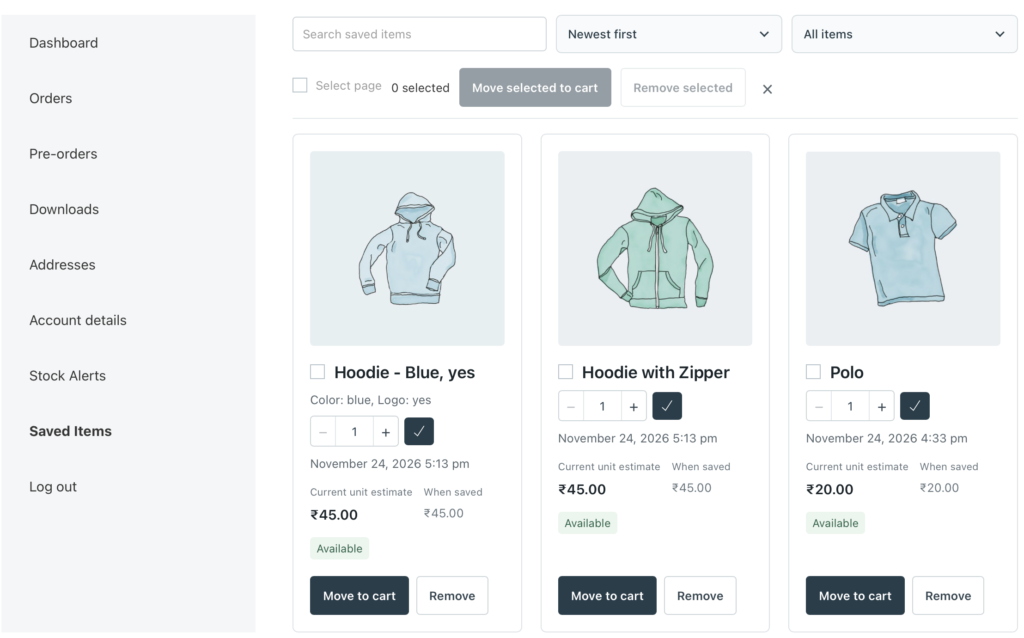
A practical look at the new Save for Later feature for WooCommerce stores built with Bricks Builder.
Every WooCommerce store owner knows the moment. A shopper fills their cart, hesitates over one item, and the only real choices are to buy it, delete it, or leave. Deleting means hunting for the product again later. Leaving means the sale is probably gone.
BricksUltimate’s Save for Later feature gives shoppers a fourth option: park the item in a private list, keep shopping, and bring it back when they are ready. Here is what it does, how to set it up, and where it fits into your store.
What Save for Later Actually Does
Save for Later lets customers move supported items out of the active cart and into a personal saved list. When they come back to it, they can move the item to the cart again.
The important detail is that it saves the configuration, not just a product ID. If a customer picked a specific size and colour variation, or chose supported add-ons, those choices are remembered along with the quantity. Nobody has to rebuild a configured product from scratch.
It is also honest about what it is not. Saving an item is not a price lock and not a stock reservation. When a customer moves an item back to the cart, WooCommerce’s current price, stock status and purchase rules apply. That keeps your pricing logic and inventory in charge, which is exactly where you want them.
Built for Bricks Builder
The feature ships with five dedicated Bricks elements, so you can place each piece exactly where your design needs it:
- (BU) Save for Later moves one specific cart line into the saved list.
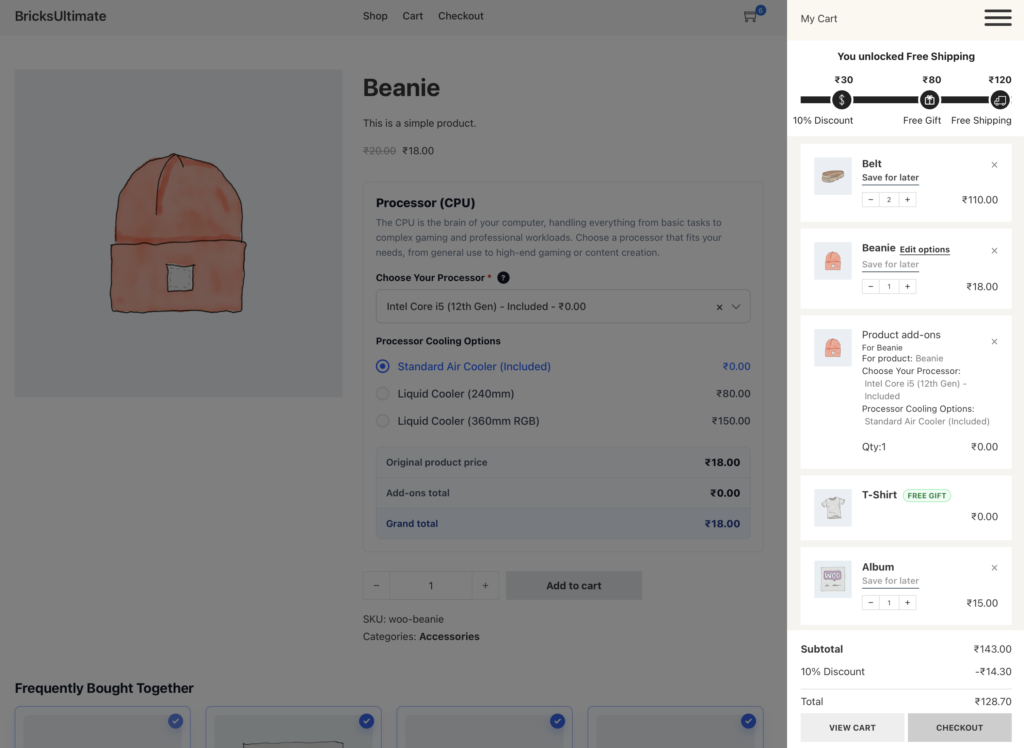
- (BU) Saved Items displays the visitor’s private list as a product grid or a compact list.
- (BU) Move to Cart brings a saved item back into the active cart.
- (BU) Remove Saved Item deletes a saved record, with an optional confirmation and a short undo window.
- (BU) Saved Items Counter shows how many saved items a visitor has, handy for a header link.
You also get a Saved Items query provider, dynamic tags and element conditions, so designers who want a fully custom layout are not boxed in by the ready-made list.
Setting It Up in a Few Minutes
Save for Later is off by default, so the first step is to switch it on.
- Make sure WooCommerce, Bricks and BricksUltimate are active.
- Go to Bricks > BricksUltimate > MISC, find Save for Later, enable it and save.
- Reopen the Bricks editor. All five elements appear in a Save for Later category.
- Edit your cart or mini-cart layout, select (BU) Cart Content, and turn on Show Save for Later under the Save for Later group. Set the button text and the success and error messages.
- Create a page called “Saved for Later” and add the (BU) Saved Items element. Choose a grid or compact list.
- Optionally, add the Saved Items Counter to your header and link it to that page.
Then test it on the frontend: add a product, save it, check the list and counter, and move it back. Repeat with a variation before you go live.
The button works with BU Cart Content, the native Bricks Cart Items element (on Bricks versions that expose the needed API), and the BU Mini Cart Builder, so it also works inside slide-out carts.
A Saved List Shoppers Can Actually Manage
The ready-made Saved Items element is more than a simple list. Out of the box you can enable:
- Quantity editing with compact plus and minus controls that respect WooCommerce minimums, maximums and step values.
- Search across product names, SKUs and variation attributes.
- Sorting by date, name, price or quantity.
- Filters such as Available, Unavailable, Configured items, Needs review and Price changed.
- Bulk actions to move or remove up to 25 selected items at once, with per-item results. If one product is out of stock, the others are still added.
- Pagination, with 12 items per page by default.
For customers with long lists, this turns Save for Later into a genuine shopping-planning tool rather than a dumping ground.
Smart About Prices and Stock
A saved item can sit for weeks, and a lot can change. Save for Later handles this in a few ways.
Price change indicators. The list can show the current price next to the price from when the item was saved, with increase or drop badges. Badges only appear when the comparison is reliable, meaning currency, tax display and pricing context all match. If it cannot compare fairly, it shows no badge rather than guessing.
Availability badges. Each item shows its current status, such as available, on backorder or out of stock. It is a precheck, not a promise, and the final validation still happens when the item is restored.
Review prompts. If a variation changed or a product’s options need attention, Move to Cart is disabled and a Review options link sends the customer to the product page. Nothing is silently swapped for a different size or colour.
Out-of-stock alternatives. For unavailable items you can show up to three suggestions drawn from sibling variations, upsells and related products. They are only links; the customer chooses what to do, and the original record stays intact.
Guests, Accounts and Every Device
Shoppers do not need an account to use the feature. Guests get a private list tied to a signed browser identifier, with records stored on the server. By default guest lists are kept for 30 days and hold up to 50 saved configurations, and you can adjust both in the MISC settings. Logged-in customers have a default limit of 100.
When a guest logs in or registers, their saved list is merged into their account, and the system prevents the same list from being imported twice. Account holders can then see their saved items on any device. BricksUltimate also adds an optional Saved Items tab to the My Account area, or you can disable it and use your own page or endpoint.
Undo, Wishlist and Other Thoughtful Extras
- Undo for removals. After removing a saved item, shoppers get a five-minute window to undo it. The configuration, quantity and original saved date come back.
- Wishlist action. If you use the BU Wishlist, shoppers can transfer or copy saved items to it. Because a wishlist stores only product references, configured items are copied rather than moved, so their options are never lost.
- Clear feedback. Toast notifications confirm saves and surface errors, with positions and durations you control.
Privacy and Caching
It stores only approved configuration data and a historical price snapshot, validates ownership on every request, and integrates with WordPress personal data export and erasure tools. Private lists load in uncached responses, so make sure your cache rules keep cart, account and dynamic endpoints out of shared page caches.
Who Should Use It
Save for Later suits stores with considered purchases, such as fashion, furniture, electronics, gifts and anything with variations or add-ons, where shoppers often compare, wait for payday, or check with someone else. Instead of losing that intent to a deleted cart line, you keep it in a tidy list one click from checkout.
If you already run BricksUltimate, enabling it is a single checkbox in MISC. Turn it on, add the button to your cart layout, build a Saved for Later page, and let shoppers come back on their own terms.
Full setup details are in the Save for Later documentation.


