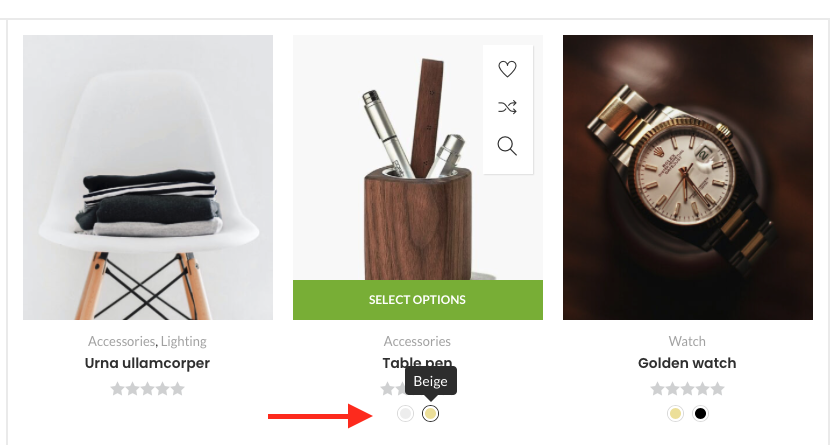
Swatches for Loop is an element that adds the swatches to the products list. This element will only work on the Bricks query loop builder. If you are making the shop or product archive pages with the Bricks query loop builder, you can also add the swatches there.
Activate the Element
- Go to your Dashboard
- Navigate to Bricks -> BricksUltimate -> Woo tab
- Enable the Swatches for Loop element
Now it will show on the Bricks editor and you can use it for the site.
How to use
Step 1: Go to Bricks -> BricksUltimate -> MISC tab and enable the Swatches option.
Step 2: Now we add the attributes and create the swatch. Navigate to Products -> Attributes page and add some new attributes there like colors, size, weight, space, etc. Now your attributes are listed at the right side on the same page. Click on the “Configure Terms” link and add some new terms there.
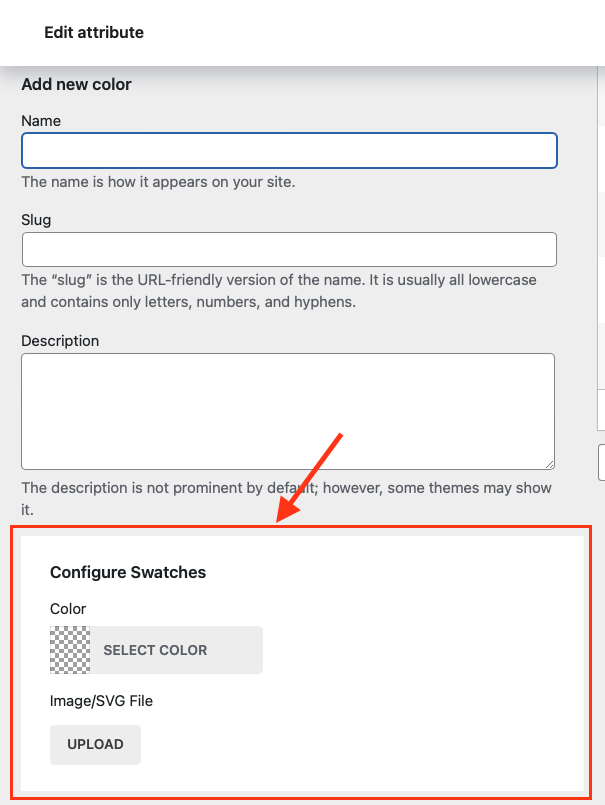
BricksUltimate adds terms metadata option for the terms. You can upload the images or assign hex values for the colors. See the red box below.
Step 3: After completing the attributes section, you will go to the Products -> Add/Edit page and set the attributes of the products. If the product is a variable product type, then you should create the variations also.
Step 4: Make sure that you create the product listing with the Bricks query loop builder. Select the Swatches for Loop element under the Ultimate category and drop it into the canvas like the attached image.

#1: Select one attribute from the Attributes drop-down
#2: Adjust other settings as per your requirements
Can we show attributes of the simple products by Swatches for Loop element?
Yes. This element also supports the simple product’s attributes. You select the “Enable for simple product” option in the Swatches for Loop element and it will display the swatches for the simple product type.
Connects With the Add To Cart button
Go to Bricks->BricksUltimate->Woo Element and activate the (BU) Add To Cart element. Make sure that you created the product listing(home, shop, archive page) with the Bricks native loop builder.
- Add the Swatches for Loop element inside the loop wrapper
- Turn on the “Enable Syncing” option
- Select the “Add To Cart” or “Add To Cart Icon” option from the Button element dropdown
- Enter the button text if you are using the Add To Cart element
- Add the Add To Cart or Add To Cart Icon element inside the loop wrapper
- Adjust the other settings and save it


