The Post Terms element of the Bricks Builder is showing the terms list on the site.

It has the following features:
- Disable the terms link.
- Set the limit and you can show x amount of terms on the site(not all terms). Good for the magazine, business, etc layout.
- Dynamically add the background and text color. That means you will create the term meta fields with ACF/Metabox or custom PHP code, add the different colors to every term and element will take care rest of the part.
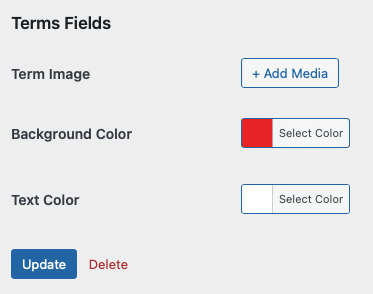
Term meta for colors
Activate the Element
At first, you will activate this element from Bricks -> BricksUltimate -> General tab page. Select the checkbox of the Post Terms element and save the changes. Then it will render on the Bricks Builder editor under the “Single” category.
How to Use
This element will work with any taxonomy. Select the proper taxonomy from the dropdown and adjust the other controls as per your site requirements. Terms of that taxonomy will show on the site.[edd_restrict id=”12,14,2474,96772″ message=”If you want to view the rest of the content, you need to buy the BricksUltimate add-on. Users of the BricksUltimate will view this content after login.”]
Dynamically Show The Colors
Step 1: You need the term meta to achieve it. You can use the ACF/Metabox or custom PHP code and make the color picker term meta. Here I use the Metabox plugin.
Navigate to Meta box-> Custom Fields page and create the custom fields for terms. This was my settings:

Step 2: Under the settings section, I set the location

Step 3: Now you will edit the existing terms of the selected taxonomy or create the terms from their respective page. Click on the Update button and save the data.
Step 4: Open the bricks builder editor and add the Post Terms element on the canvas. You will get the control options on the left panel. Scroll down and go to the “DYNAMIC” section. You will get the two input fields: one for background color and another for text color. Enter the term meta key name in those fields this way

That’s it. Publish the changes and check the frontend.[/edd_restrict]


